Want to work on code online. For many reasons, you might want to code online. There can be many reasons for it like your OS not supporting something, learning to work with different environments etc.
What do I mean by working online?
When I say we will be working online. I mean that we will be working in an online environment, on a site called repl.it. This site will spin up a ready-to-use coding environment for you to work with.
Do you need to pay?
No, it is completely free. But, as usual, there is a catch. Every project that you make has to public and can be seen by anyone on the internet. Also, your project sleeps after sometime. But, I think that is ok for us. If not, then you can pay to upgrade.
Creating a Repl
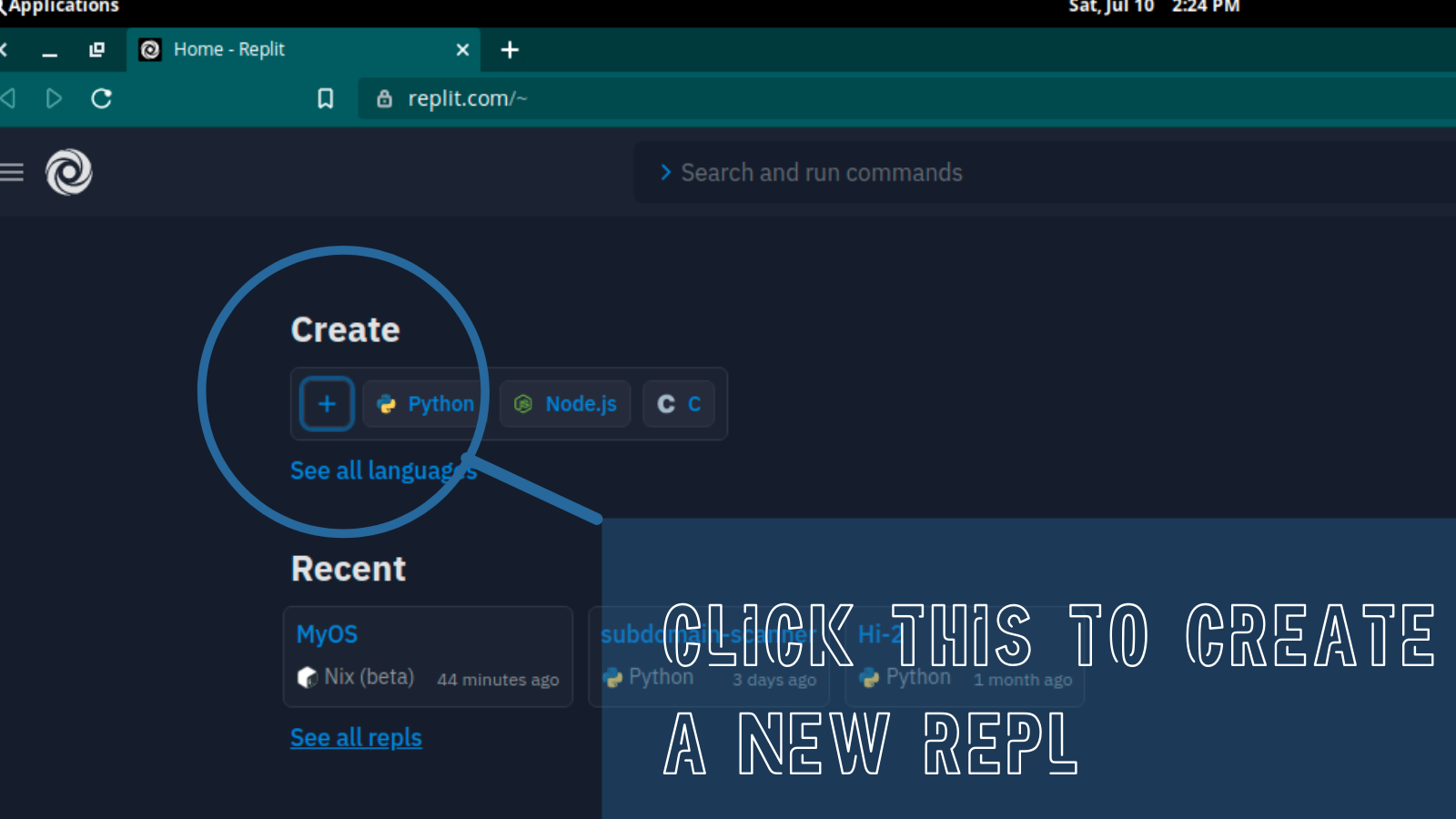
When you login to repl.it. There will be a + option to create a repl (or a project).
Now, it will show a pop-up. Here, you can select the type of project and the name of your project.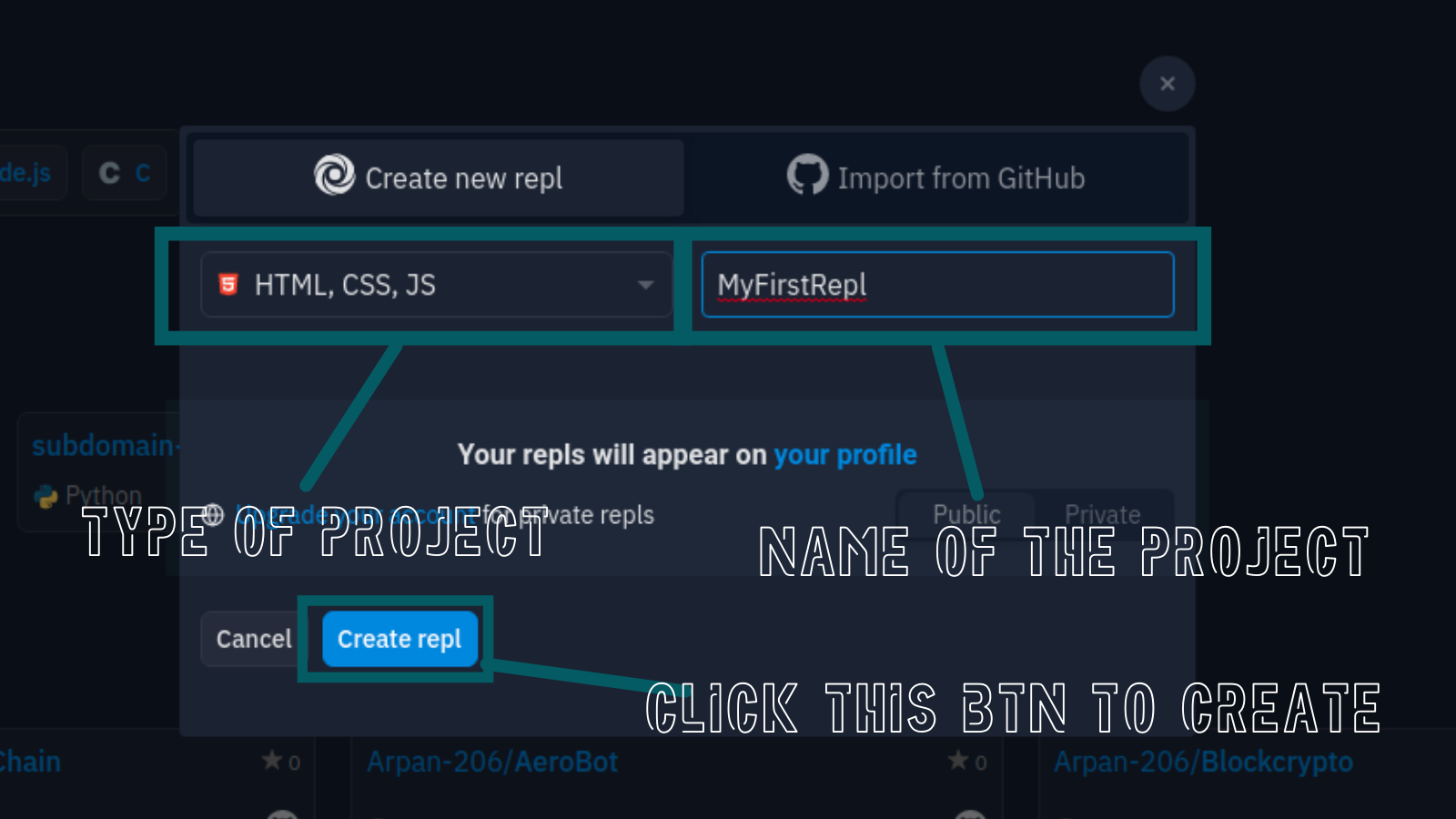
How does a Repl look like?
Here, is what a repl looks like.
Now, let's get familiar with the window.
- Coding Window: This is the place where you can write the code itself.
- Browser Output: This is the place where you can find the visual output of your code. Since, it is a web development project, this will be the browser output.
- Console or Shell or Terminal: This is the place where you can find the terminal output of the code. This is also a place where you can execute basic Linux commands.
- Files: This is the place where you can find all the files being used in the project. You can also download or upload files here. You just need to click the file to open it in the editor.
- Options: Here, you can switch through various options like Version Control, Files, Packages, Settings and Environment Variables etc.

Running your code.
Here, is what a repl looks like, as you will probably know by now. There is a Run button at the top. Now, you will be able to see the output in the output window. Now, you can click the button marked Output In A New Tab to see the output in a new browser tab.
